How to Remove TikTok Watermark: Free Step-by-Step Guide
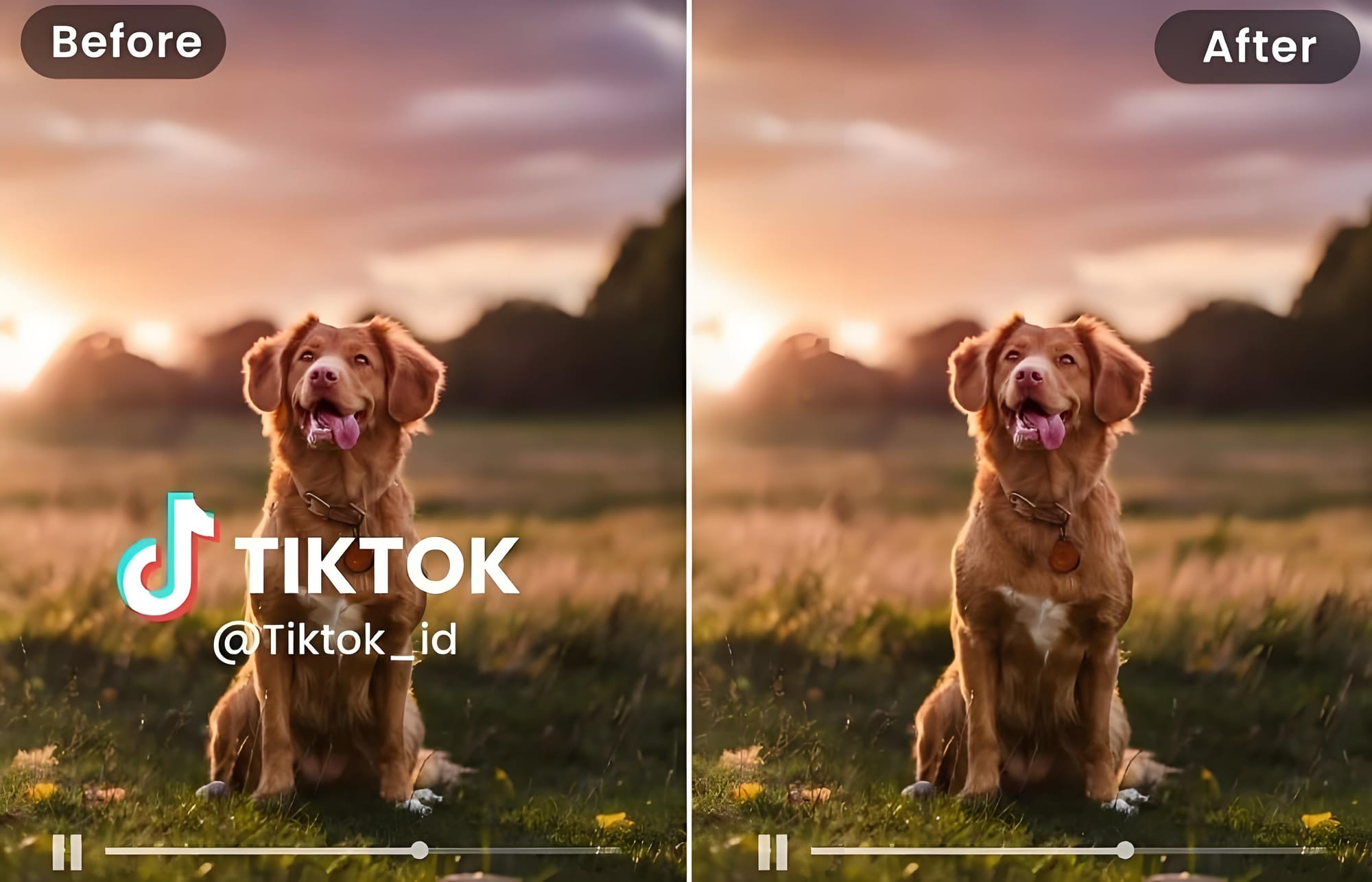
If your goal is to remove TikTok watermark branding, you'll find that there isn't a perfect solution. Depending on where the watermark appears, whether you still have the original project file, and how much quality you want to preserve, different methods work better in different situations.
Below, you'll find a clear breakdown of each method—from quick, free ways like cropping and blurring, to offline tools, open-source AI workflows, and online AI removers. Later, we'll also show you how to remove TikTok watermark step by step. Although this guide focuses on TikTok, the same methods also work for CapCut, Instagram Reels, and other watermarked videos.
The most common watermark removal methods can be divided into six categories.

Method 1. Crop the Video to Exclude the Watermark (Fastest but Loses Content)
To remove TikTok watermark branding by cropping, the mark must stay in one corner throughout the video. Every editor—from CapCut to Premiere—includes a crop tool, so there's nothing new to install. The downside becomes obvious once you export the video. You'll lose part of the frame, and vertical videos may look noticeably tighter than the original.
Best for: Small corner logos when preserving the full frame isn't important.
Method 2. Blur or Cover the Watermark
If you're only posting casually on social media, covering the watermark with a sticker or text overlay can be enough. Place a black rectangle or other element over the watermark. This can obscure the watermark but might be noticeable and potentially distracting to viewers. It takes only a minute, although anyone looking closely will probably notice that something has been edited. However, the watermark isn't actually removed—it's simply hidden. The edited area often remains noticeable, making the final video look less professional.
Best for: Quick edits where visual quality isn't the top priority.
Method 3. Re-export Without the Watermark
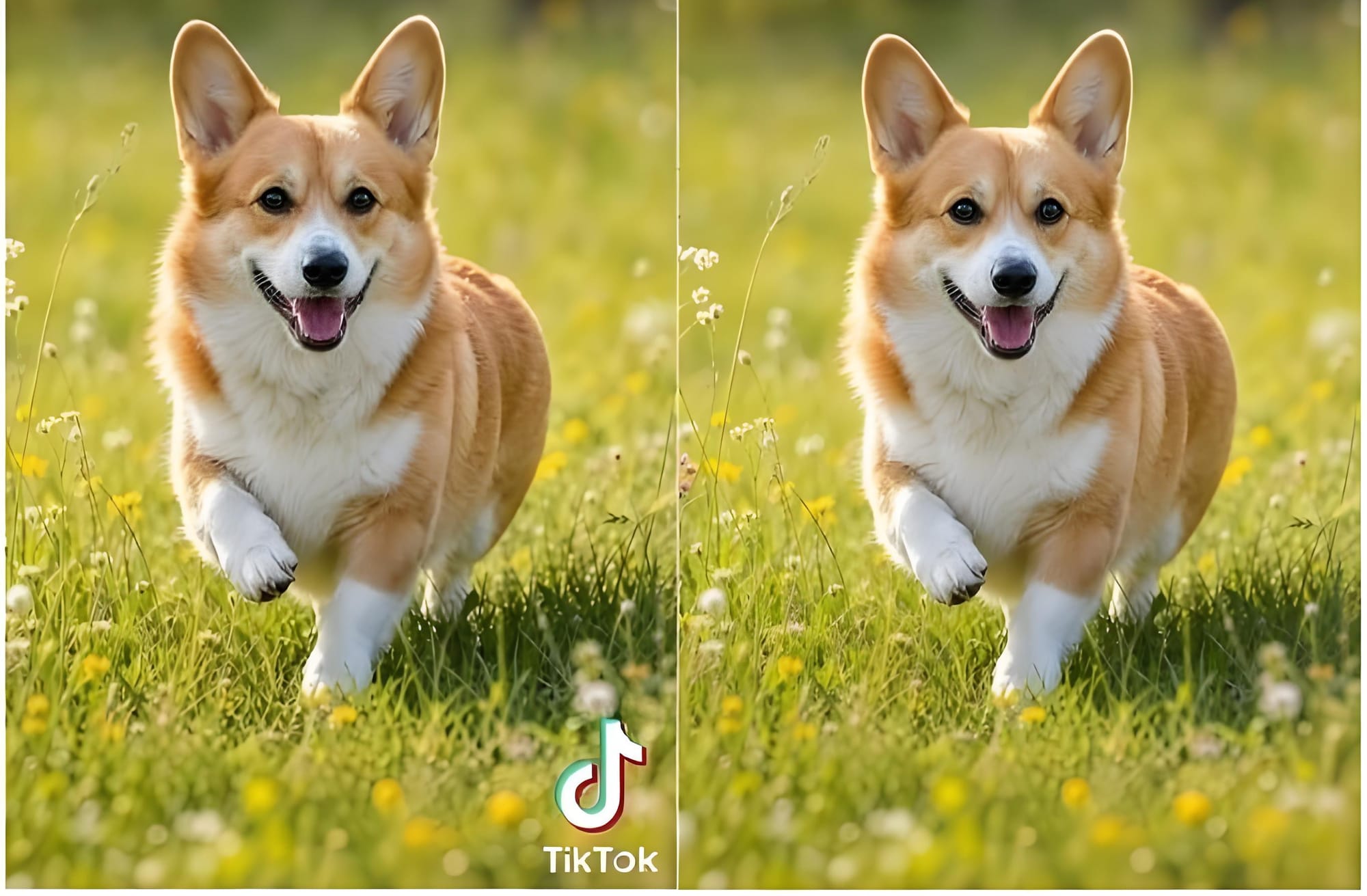
If you want to remove TikTok watermark branding from a video you created, the easiest solution is to reopen the original project and export it again using software that doesn't add watermarks. Editors like Kdenlive and DaVinci Resolve are popular choices. This keeps the original quality intact, but it only works if you still have the editable project.
Best for: Videos you created yourself and can re-export.
Method 4. Use an Offline AI Watermark Remover
Desktop applications such as Pixbim Video Watermark Remover AI process videos locally without uploading files to the cloud. They usually support larger files and offer better privacy, making them a good choice for users who edit videos regularly. The trade-off is that installation is required, processing may be slower, and results can vary depending on the software. We also tested an offline desktop solution. Running everything locally is a nice advantage if privacy matters, especially when working with client videos. The trade-off is that processing generally takes longer than browser-based AI tools.
Best for: Users who prefer offline editing and need stronger privacy protection.
Method 5. Use Open-Source AI Models
Experienced users can remove watermarks with open-source AI tools built on platforms like ComfyUI or custom video inpainting models. These workflows are highly customizable and can deliver excellent results after proper setup. However, they require technical knowledge, a powerful GPU, and significantly more time than consumer-friendly tools.
Best for: Developers, AI enthusiasts, and professional editors.
Method 6. Use an Online TikTok Watermark Remover (Fast & High-Quality) ⭐
For users who need to remove TikTok watermark overlays quickly, an online TikTok watermark remover is often the most convenient option. Unlike manual methods such as cropping, blurring, or covering the watermark, AI tools can analyze the selected area and reconstruct the background to create a cleaner result. These tools can reconstruct missing pixels behind a watermark, especially for static ones in corners.
To evaluate how these tools perform in real-world scenarios, we tested five popular AI video watermark removers using the same TikTok video sample. The tested tools included FlowChartAI, Supawork AI, MagicEraser, EZRemove, and Pixbim Video Watermark Remover AI. The results are shown in the comparison table below.

Comparison Table
For users who need to remove TikTok watermark overlays quickly, an online TikTok watermark remover is often the most convenient option. Corner watermarks are generally the easiest for AI tools to remove. Unlike manual methods such as cropping, blurring, or covering the watermark, AI tools can analyze the selected area and reconstruct the background to create a cleaner result. These tools can reconstruct missing pixels behind a watermark, especially for static ones in corners.
To evaluate how these tools perform in real-world scenarios, we tested five popular AI video watermark removers using the same TikTok video sample. The tested tools included FlowChartAI, Supawork AI, MagicEraser, EZRemove, and Pixbim Video Watermark Remover AI. The results are shown in the comparison table below.
Tool | Output Quality | Processing Time (12s Clip) | Upload Limit | Pricing | Platform |
Supawork AI | ⭐⭐⭐⭐☆ (4.5/5) | Under 1 minute | Up to 100MB | Free coins + daily check-ins | Online |
FlowChartAI | ⭐⭐⭐⭐☆ (4.5/5) | Under 1 minute | Up to 20MB | 3-month free trial | Online |
MagicEraser | ⭐⭐⭐⭐☆ (4/5) | Under 1 minute | Up to 20MB | 8 free credits on signup | Online |
EZRemove | ⭐⭐⭐☆☆ (3.5/5) | Under 1 minute | Up to 500MB, 4K | Free credits + daily check-ins | Online |
Pixbim | ⭐⭐⭐☆☆ (3.5/5) | ~1 min 35 sec | No upload limit (desktop software) | Free offline version | Desktop |
Want a detailed comparison of the tools mentioned above? Check out our in-depth review of the best AI video watermark removers. Read the Full Comparison
How to Remove TikTok Watermark?

If you need to remove TikTok watermark branding, the steps below show a typical online AI workflow. We used FlowChartAI for this walkthrough because it performed well in our testing, runs entirely in the browser, and currently offers a 3-month free trial. The same general steps apply to most AI removers: upload, select the watermark area, process, then download.
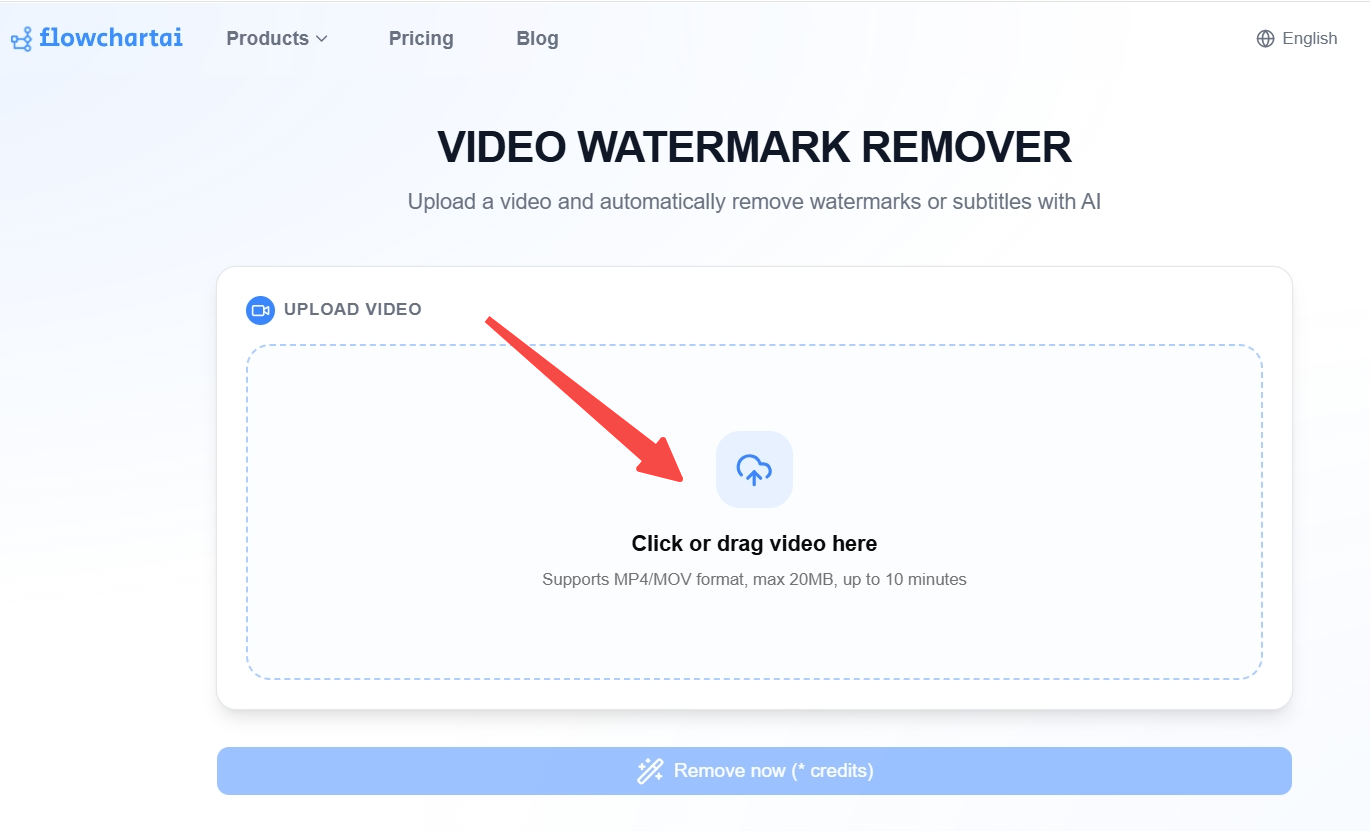
Step 1: Upload Your Video
Upload the TikTok video you want to remove the watermark from. It supports common video formats, including MP4 and MOV, and works on both Windows and Mac.
(Tip: ⚠️ Maximum upload size: 20 MB, which is suitable for most short videos.)
Step 2: Select the Watermark Area
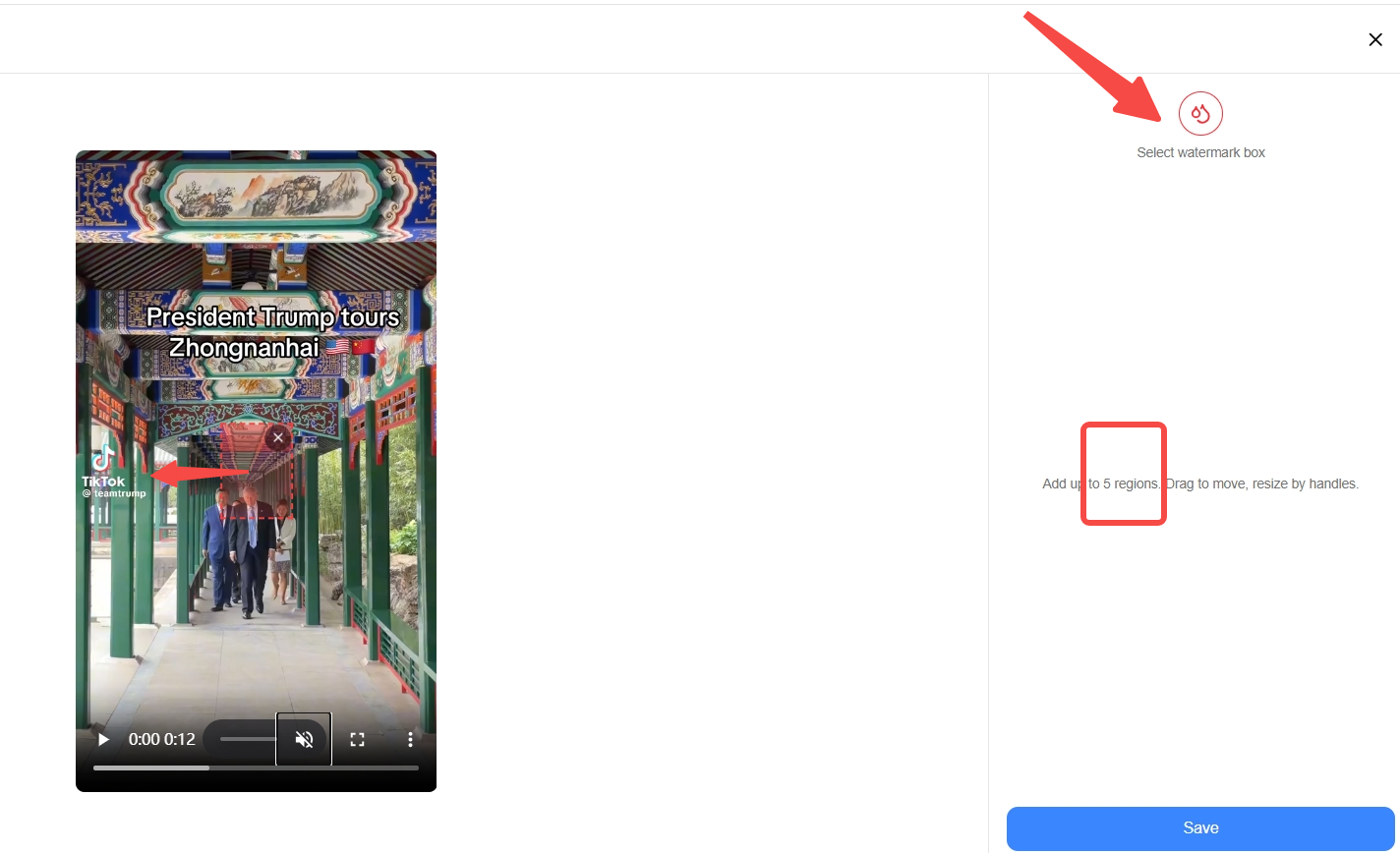
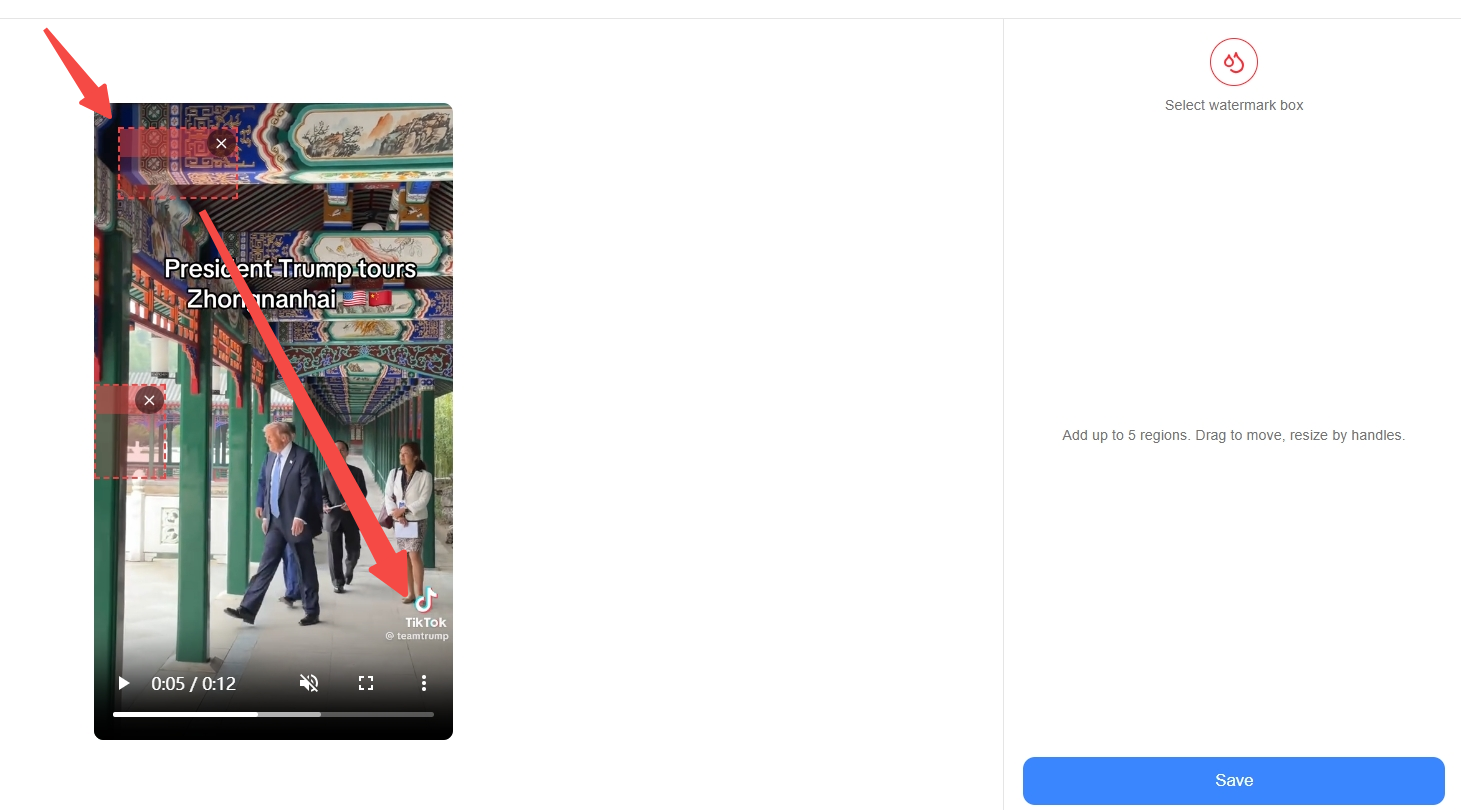
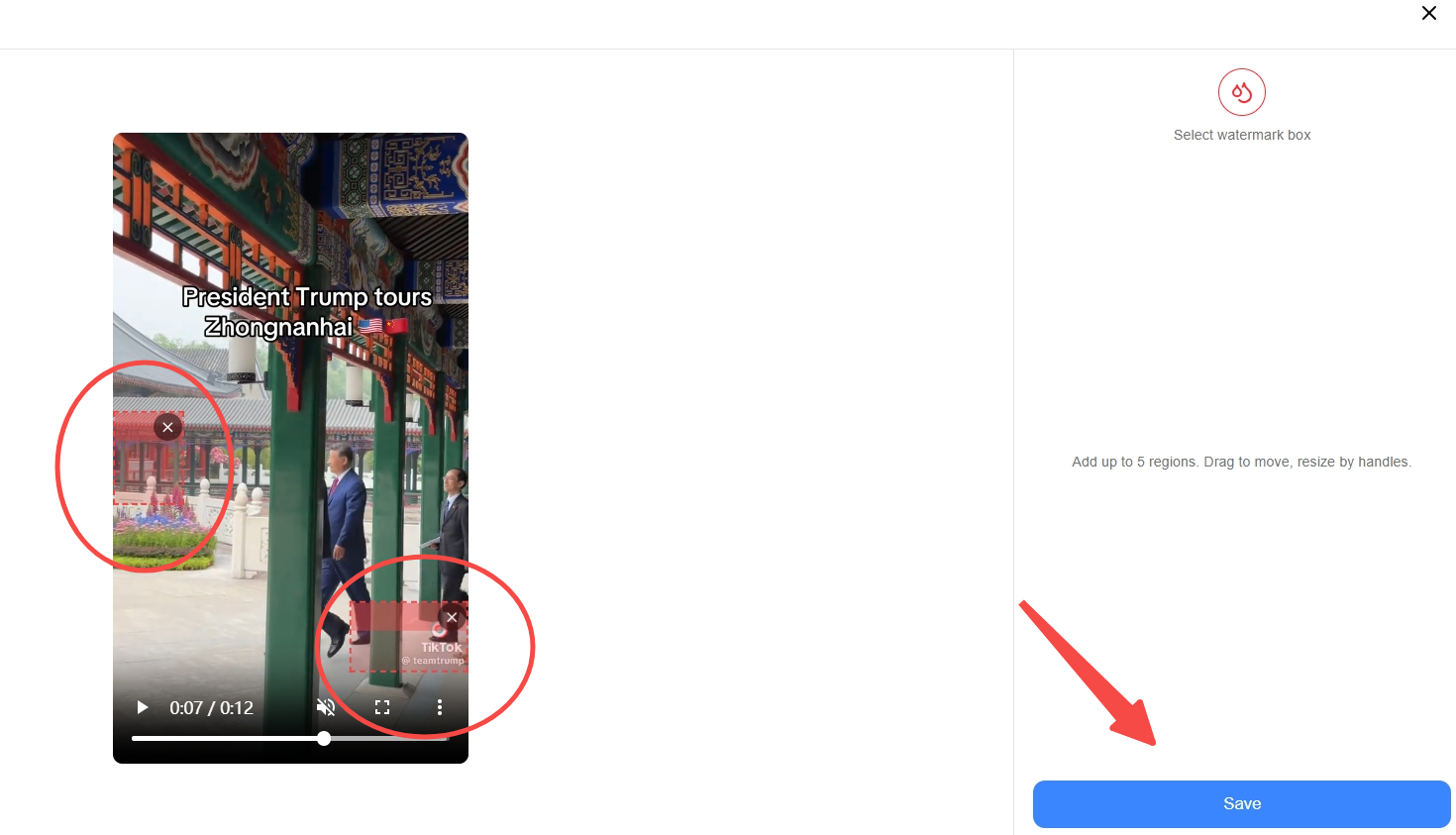
Click Select Watermark Box, then drag the selection box over the TikTok logo, username, or any other watermark. Resize the box using the corner handles until the watermark is fully covered. If another watermark appears later in the video, click Play, add another box, and repeat the process. You can add up to five watermark regions. You don't need to mark every frame manually. Each selection box remains active throughout the rest of the video unless you delete it.
Step 3: Remove the Watermark
After selecting all watermark areas, click Remove. FlowChartAI reconstructs the selected area, not just blur or crop it. This helps to preserve the original video quality and reduces ghosting and visible artifacts. The processing time for most short videos is within one minute, depending on the length of the video and the complexity of the watermark.

Step 4: Save Your Video
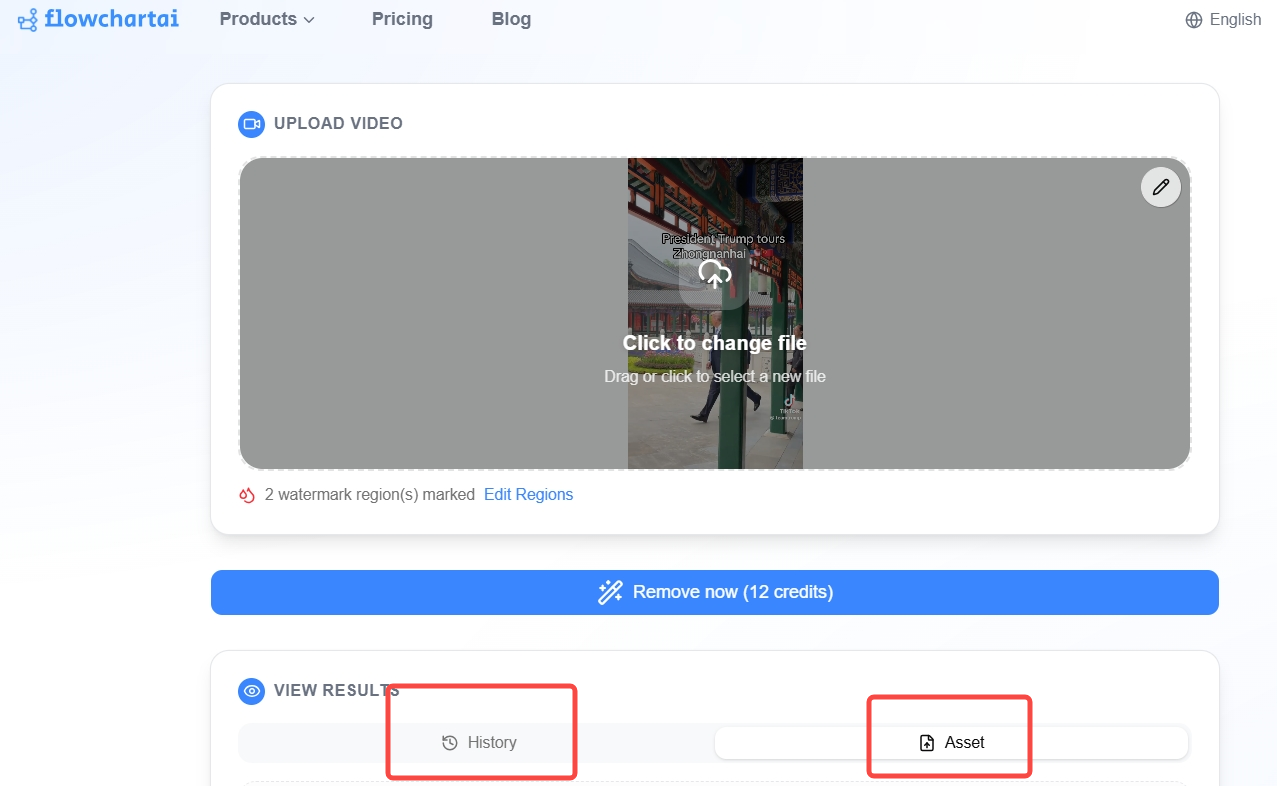
After processing, preview the result to make sure all selected watermark areas have been removed successfully. If you're satisfied with the output video, click Download to save your watermark-free video. The exported file does not include any additional watermark.
Which Method Is Best?

There isn't a perfect way to remove a watermark—only the method that's best for your specific needs. Free methods, like cropping, blurring, or covering the watermark are fast and accessible but often reduce the video's quality. Re-exporting preserves the original quality but only works if you still have the editable project. Offline AI tools provide better privacy and local processing, while open-source AI models offer maximum flexibility at the cost of a steeper learning curve and longer setup time. For most users, online AI video watermark removers provide the best balance between convenience, processing speed, and output quality.
FAQ
- How can I remove a watermark without losing video quality?
To remove a watermark without losing quality, you should avoid heavy cropping or excessive blur, as they may reduce resolution or affect the overall appearance. Using AI reconstruction technology, AI tools can fill the removed area while preserving the original details.
- Can CapCut remove watermarks?
CapCut can remove some watermarks depending on how they were added. If the watermark comes from a CapCut export, you may be able to remove it by adjusting export settings or using the original project file. However, for downloaded videos that already contain CapCut logos or other overlays, a TikTok watermark remover may provide a simpler solution without needing the original editing project.
- How do I remove a watermark from a video on my iPhone?
You can remove video watermarks on an iPhone using mobile editing apps, online tools, or AI-powered web applications. Online tiktok AI watermark removers are convenient because they work directly in a browser without requiring large apps or complicated editing workflows. This allows you to process videos from your phone and download the cleaned version when finished.
- Is there a free way to remove video watermarks?
Yes. Some tools offer free plans or trials for watermark removal. FlowChartAI provides a free 3-month trial, allowing users to test AI watermark removal features before choosing a paid plan. Free tools may have limitations such as file size restrictions, processing speed, or export quality.
о авторе